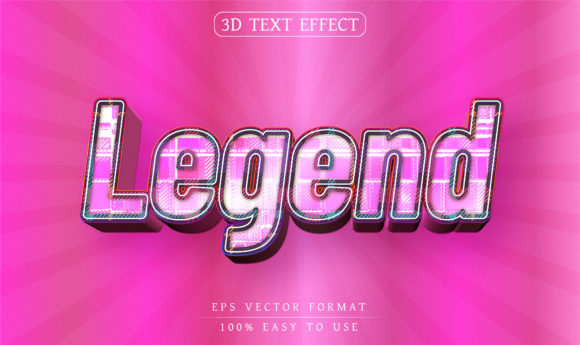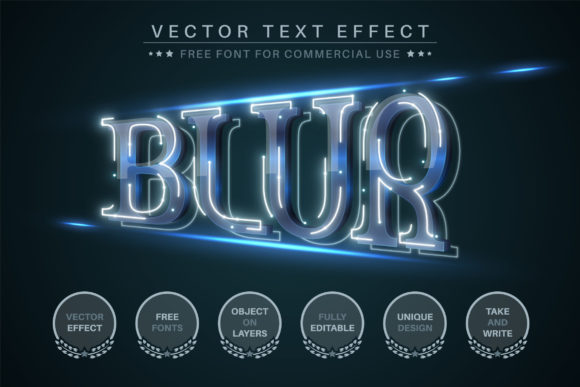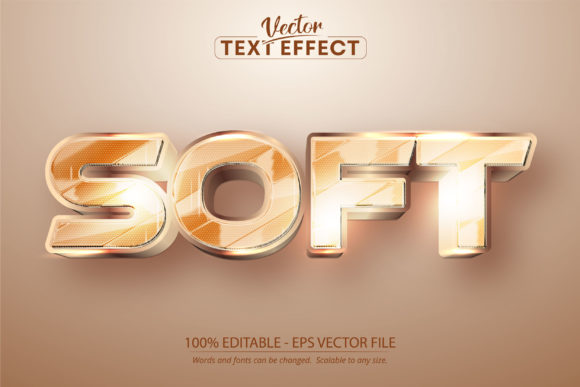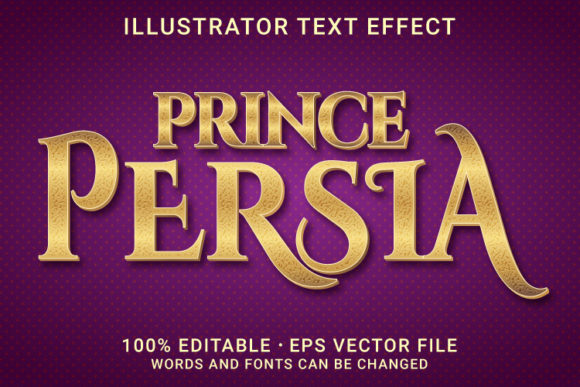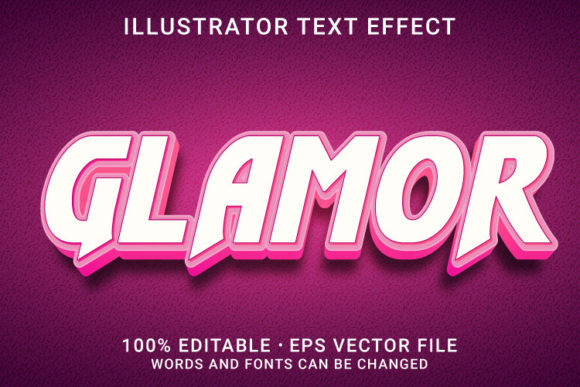
GLAMOR 3d -Editable Text Effect
Creating professional-looking typography often feels like a steep learning curve, especially when you are trying to balance speed with aesthetic quality. Many designers and marketers assume that achieving a polished, three-dimensional text look requires hours of manual layering in Adobe Illustrator or complex Photoshop actions. However, tools like GLAMOR 3d -Editable Text Effect challenge that assumption by offering a streamlined workflow. This resource allows users to generate high-impact, editable text styles with just one click, making it a compelling option for posters, web graphics, and various creative projects.
If you are evaluating whether this template fits your workflow, it is essential to look beyond the flashy preview images. Understanding the technical specifications, the flexibility of the file formats, and the potential pitfalls of using pre-made assets will help you make an informed decision. This guide breaks down what is included, how to use it effectively, and common mistakes to avoid when integrating these effects into your design process.
What Is Included in the Package?
When purchasing a digital asset like GLAMOR 3d -Editable Text Effect, clarity on deliverables is crucial. This package is designed for versatility, ensuring compatibility across different stages of your design pipeline. Here is a breakdown of the core components:
- Adobe Illustrator Files (AI and EPS): The primary files are provided in AI and EPS formats. These are vector-based, meaning they retain their crispness regardless of size. You can scale them up for large-format printing or down for social media thumbnails without losing quality.
- High-Resolution JPG Previews: Each style comes with a JPG preview. This is useful for quick browsing and understanding the visual outcome before opening the heavy vector files.
- 100% Editable Content: The text within the styles is not flattened. You can select, modify, and replace the typography instantly. Furthermore, the effects can be applied to any shape or compound path, not just standard text boxes.
- No Skill Requirement for Basic Use: While advanced customization benefits from design knowledge, applying the base styles requires minimal technical skill. The "one-click" nature of the application means beginners can achieve professional results quickly.
Common Mistakes When Using Vector Text Effects
Even with user-friendly templates, errors can occur if the underlying mechanics of vector editing are misunderstood. Below are frequent issues users encounter and how to correct them.
1. Ignoring Font Compatibility
A significant oversight when using editable text templates is assuming the default font will appear exactly as shown on every computer. If you do not have the specific typeface installed, Illustrator may substitute it with a generic font, distorting the spacing and overall aesthetic. Always check which fonts are used in the preview. If the font is proprietary or uncommon, ensure you have access to it or choose a similar alternative before finalizing your project. Failing to match the font family can undermine the "glamor" effect, resulting in a disjointed look.
2. Overlooking Resolution Limits in Export
While the source files are vectors, the final output depends on how you export them. A common mistake is exporting vector work directly to low-resolution raster formats for print materials. If you intend to use the GLAMOR 3d effect on a large poster, ensure you export at a high DPI (dots per inch), typically 300 DPI for print. Conversely, for web use, optimizing for screen resolution (72–150 DPI) ensures fast loading times without sacrificing clarity. Confusing these two standards can lead to pixelated text or unnecessarily large file sizes.
3. Assuming All Shapes Are Equal
The product description notes that styles can be applied to shapes or compound paths. However, not all shapes behave identically when receiving 3D extrusions or embossing effects. Simple geometric shapes usually respond predictably, but complex compound paths might require manual adjustment of the extrusion depth or bevel settings. Users often skip this step, leading to distorted edges or overlapping surfaces that ruin the clean, modern aesthetic. Take time to inspect the geometry after applying the effect.
How to Edit and Customize Effectively
To get the most out of GLAMOR 3d -Editable Text Effect, follow a structured approach to editing. This ensures efficiency and maintains the integrity of the original design intent.
- Open the AI File: Launch the file in Adobe Illustrator. Ensure your workspace is set up to view layers clearly.
- Select the Text Layer: Locate the text group in the Layers panel. Click on the text object. It should be highlighted, indicating it is ready for modification.
- Replace Your Text: Type your new headline or body copy. Be mindful of character count; extremely long text may break the layout or distort the 3D perspective. Short, punchy headlines usually yield the best results with this style.
- Adjust Colors and Styles: Use the Appearance panel to tweak colors, gradients, or shadows. Since the effect is non-destructive, you can experiment freely.
- Apply to Shapes: To use the effect on a logo or icon, simply drag the appearance swatch onto your shape. This applies the 3D treatment instantly.
Evaluating Suitability for Your Project
Before committing to this template, consider where it will be used. The GLAMOR 3d style is particularly effective for:
- Social Media Graphics: Bold, eye-catching text performs well on Instagram and Facebook feeds.
- Event Posters: The retro and modern fusion suits concert flyers, sale announcements, and party invitations.
- Brand Headlines: For startups looking to establish a strong visual identity quickly.
However, it may not be suitable for minimalist corporate branding that relies on flat design principles. Additionally, if your project requires extensive animation, remember that these are static vector files. You would need to animate them separately in After Effects or similar software.
Final Considerations
Using GLAMOR 3d -Editable Text Effect can significantly accelerate your design process, provided you respect the technical nuances of vector editing. By avoiding common pitfalls such as font mismatches and incorrect export settings, you can produce high-quality, professional results. Whether you are a seasoned designer looking to save time or a beginner wanting to elevate your visuals, this tool offers a practical solution. Remember to rate your experience after purchase to help other creators make informed choices.